
How to setup an FTP account on Krystal Hosting

Whether I am migrating an existing website to Krystal or building a new WordPress website, i’ll usually need to start with a fresh install of WordPress which I can further customise for the job. Amethyst is the product name for least expensive plan available to buy on Krystal Hosting and is the service that I recommend for small websites. This guide talks you through how to install WordPress after buying a Krystal hosting account. It’s tailored to Amethyst but the instructions work generally for any plan.
From the Krystal account area
- Login to your Krystal hosting at https://identity.krystal.io/login
- Click on My Services to see the list of products/services you have- you should see Amethyst listed there.
- To the right of that row, click the green button called cPanel.
Note: things to do before setting up the FTP account
If you set up a temporary domain name when buying the hosting, you will need to contact support to ask them to change this. The temporary domain will look something like Amethyst - 123456789abcdefgh-12345.sites.k-hosting.co.uk
To contact support, go to the Krystal account area (not cPanel), go to Hosting > Support > Open Ticket. Scroll to the bottom of the new ticket panel and under the heading “Still can’t find a solution? – We’re here to help!” – select Tech Support.
Adding an FTP account in cPanel
- Do CMD+F and type “FTP” (or go to the Files Panel) and click FTP Accounts.
- Add a new FTP account by entering the following:
| Field | Explanation |
| Login | This is the FTP Account e.g. anthony@krystalhosting.com |
| Password | Choose a strong password or click the Password Generator button |
| Directory | Delete the default text in there so it becomes something like /home/abcdef/. This means you can access everything from the root folder, instead of in a subdirectory. |
| Quota | Set to unlimited- limiting it just means you get a maximum amount of space on the FTP account to upload files to. If moving files from the uploads folder manually, you will need as much quota as possible. |
| Create | Click the blue Create FTP Account button. |
- Once that is done, save the user account info securely.
- In the list of FTP Accounts, you will find 1 row per account.
- On the right of the row you just created, click the Configure FTP Client button.
- This reveals some extra settings for the FTP Account which you may need when connecting.
Setting up FTP Software
I use Transmit which is a Mac application that just works really well. It’s not free but very much worth it when you are connecting to lots of different types of servers. Alternatives are CoreFTP (for Windows), FileZilla (multi-platform), and Cyberduck (for Mac).
Instructions for Transmit
- Create a new Server with a name like Website – FTP Production
- Select the Protocol as FTP with TLS/SSL.
- Transmit also has a mode called Passive Mode – enable it.
- Enter the address as the server IP Address
- To find this, go back to cPanel and click the Krystal icon top left (this will take you to the home screen on any cPanel).
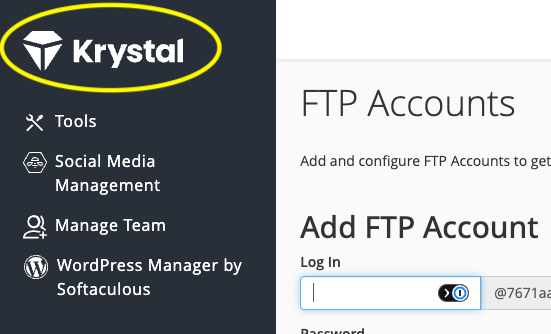
- Look for the section called Shared IP Address in the General Information section on the right of the main home screen.
- Paste the value into Transmit.
- Enter the username and password
- Add the port number of 21 (optional).
- Save
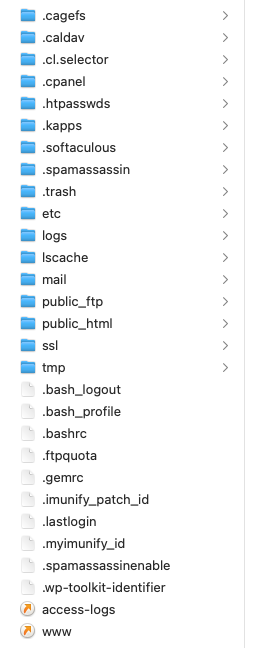
Now, you will be able to double click the server name in Transmit, and it should load into the sever:
I’ve had various issues connecting to Krystal with an FPT/sFTP account and have found that the combination of FTP with TLS/SSL and Passive mode usually works every time, even on a Krystal Reseller hosting account.
Related articles

Creating an offline archive for a website
A developer focussed tutorial explaining how to create a fully working offline copy of a website.
Read postFix the notice _load_textdomain_just_in_time was called incorrectly for ACF.
Fix the WordPress notice that Translation loading for the acf domain was triggered too early.
Read postHow to find the first Gutenberg block used on a post in WordPress
Here's a handy function to find the first Gutenberg block in a post or page in WordPress. You can pass one or more…
Read post


